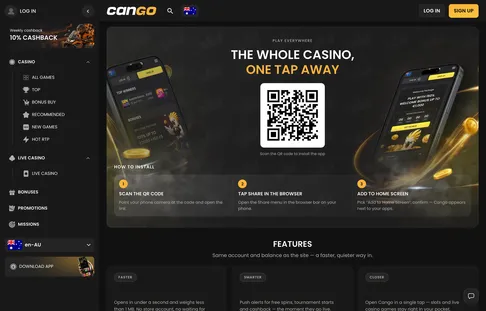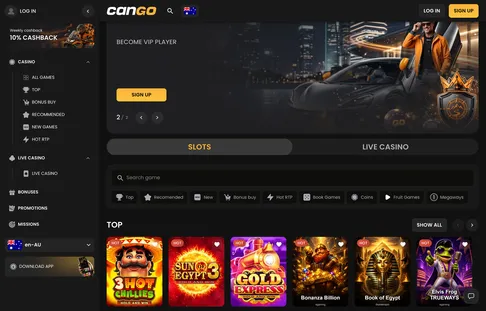

Australian players looking for the Cango app will not find a package in the Apple App Store or Google Play. Instead, Cango runs as a Progressive Web App, or PWA, which is a lightweight web shortcut that sits on your mobile home screen and opens in a full-screen window without browser bars. This stop on our tour shows how to install it on iPhone and Android in under a minute, how much storage it saves, and how the lobby, cashier, and live chat work once you tap the icon.
Cango casino app: install in brief
Setting up the Cango casino app takes about thirty seconds because you do not download a heavy installation file. You open the casino site in your default mobile browser, use the built-in browser menu to pin the icon to your home screen, and log in with your normal email and password or Google sign-in. If you are on a desktop computer first, you can also scan the QR code displayed on the site to open the mobile page directly on your handset. The table below outlines the exact installation path for each platform so you know what to tap before you start.
| Device | Browser to use | Main menu action | Final confirmation | Storage used |
|---|---|---|---|---|
| iPhone (iOS) | Safari | Tap Share icon at the bottom | Select Add to Home Screen, then tap Add | Under 2 MB |
| iPad (iPadOS) | Safari | Tap Share icon near the address bar | Select Add to Home Screen, then tap Add | Under 2 MB |
| Android phone | Chrome | Tap three dots in the top corner | Tap Install app or Add to Home screen | About 3 MB |
| Android tablet | Chrome | Tap three dots in the top corner | Tap Install app or Add to Home screen | About 3 MB |
| Desktop via QR | Camera app | Scan on-screen QR code | Follow the Safari or Chrome steps above | Under 3 MB |
Cango app: adding it on Android
Installing the Cango app on an Android phone or tablet works best through Google Chrome. When you visit the site and tap the Download Android button in the menu, the browser often triggers an automatic prompt at the bottom of your screen asking if you want to install the application. If that banner does not pop up right away, you can trigger the installation manually in three taps without leaving the page.
- Open the casino homepage in Google Chrome on your Android mobile and wait for the lobby to finish loading.
- Tap the three vertical dots in the top right corner of the browser to open the main Chrome options menu.
- Select Install app (on older Android versions this line reads Add to Home screen) and confirm by tapping Install in the small window that appears.
Within a couple of seconds, the Cango icon appears alongside your other mobile apps in your app drawer and on your main screen. When you tap it, the interface launches without the Chrome address bar or back buttons, giving you the full vertical screen for vertical pokies like Sun of Egypt 3, Elvis Frog TRUEWAYS, or 3 Hot Chillies. Because it runs on the Chrome engine in the background, your saved passwords and autofill card details work immediately when you sign in or visit the cashier.
Cango mobile: why it installs from the browser
The Cango mobile setup uses Progressive Web App technology instead of a traditional store file. A native casino app from a store often weighs between 80 MB and 200 MB and demands manual updates every few weeks. By contrast, a PWA is a direct wrapper around the mobile site that stores only essential visual elements on your phone, taking up just a couple of megabytes. Every time you tap the home screen icon, it fetches the newest version of the lobby automatically, so new releases and Sunday reload promos appear right away without waiting for a store download.
Do not search the Apple App Store or Google Play for Cango, because the casino does not publish native apps there. Any listing you spot in those stores with a similar name is either an unrelated game or an imitation you should avoid installing. Using the browser method on the site itself is the only genuine way to put the shortcut on your phone. If you run into trouble finding the Share button on Safari or the menu on Chrome, you can reach Cango support through the 24/7 live chat, where an agent typically replies within about two minutes to walk you through the steps.
There is one honest downside to a browser-based app: it requires a steady internet connection to load game assets each session, and iOS restricts background push notifications unless you enable them specifically in your iPhone settings. Still, for everyday play on 4G, 5G, or home Wi-Fi, the PWA avoids store blocks and never forces you to download gigabytes of data.